Widget on iOS and Android
When on the go, tracking an idea must be quick and easy.
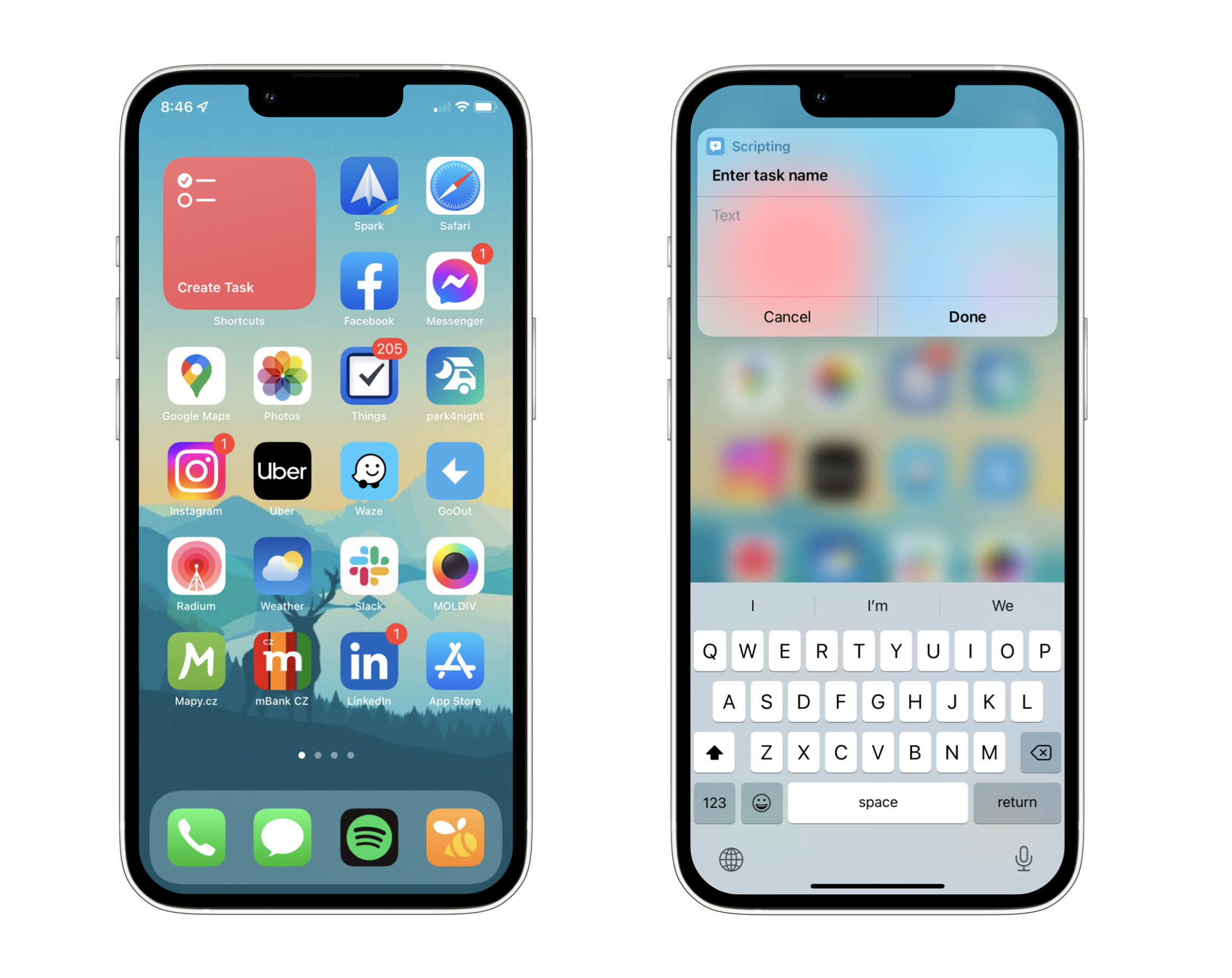
Besides using our mobile app or voice assistants (like Siri) to add new tasks, you can also set up a small widget on your home screen – this can too be achieved using Shortcuts.
This guide walks you through creating a simple widget for adding new tasks. For broader support of various other widgets, please find more context and vote for the feature on our Idea Portal.
Exactly the same can be achieved using Tasker on Android – follow the linked guide 👈
Creating the widget
Get started by creating a shortcut in the Shortcuts app.
Once the shortcut is created, we add a new widget to our iOS home screen. To do that, go to your home screen with all the icons of apps you’ve installed. Then, long press the home screen until the icons start to wiggle.
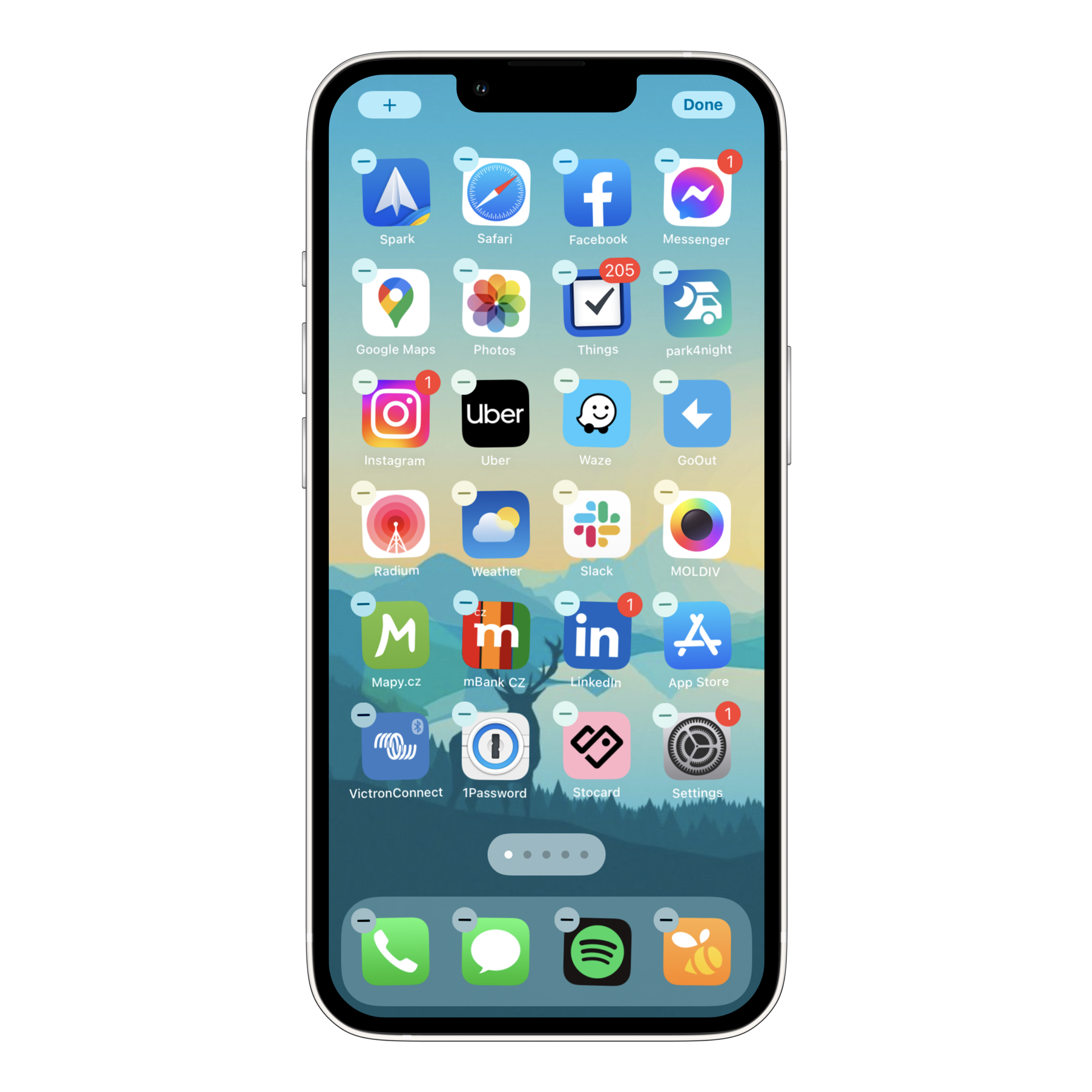
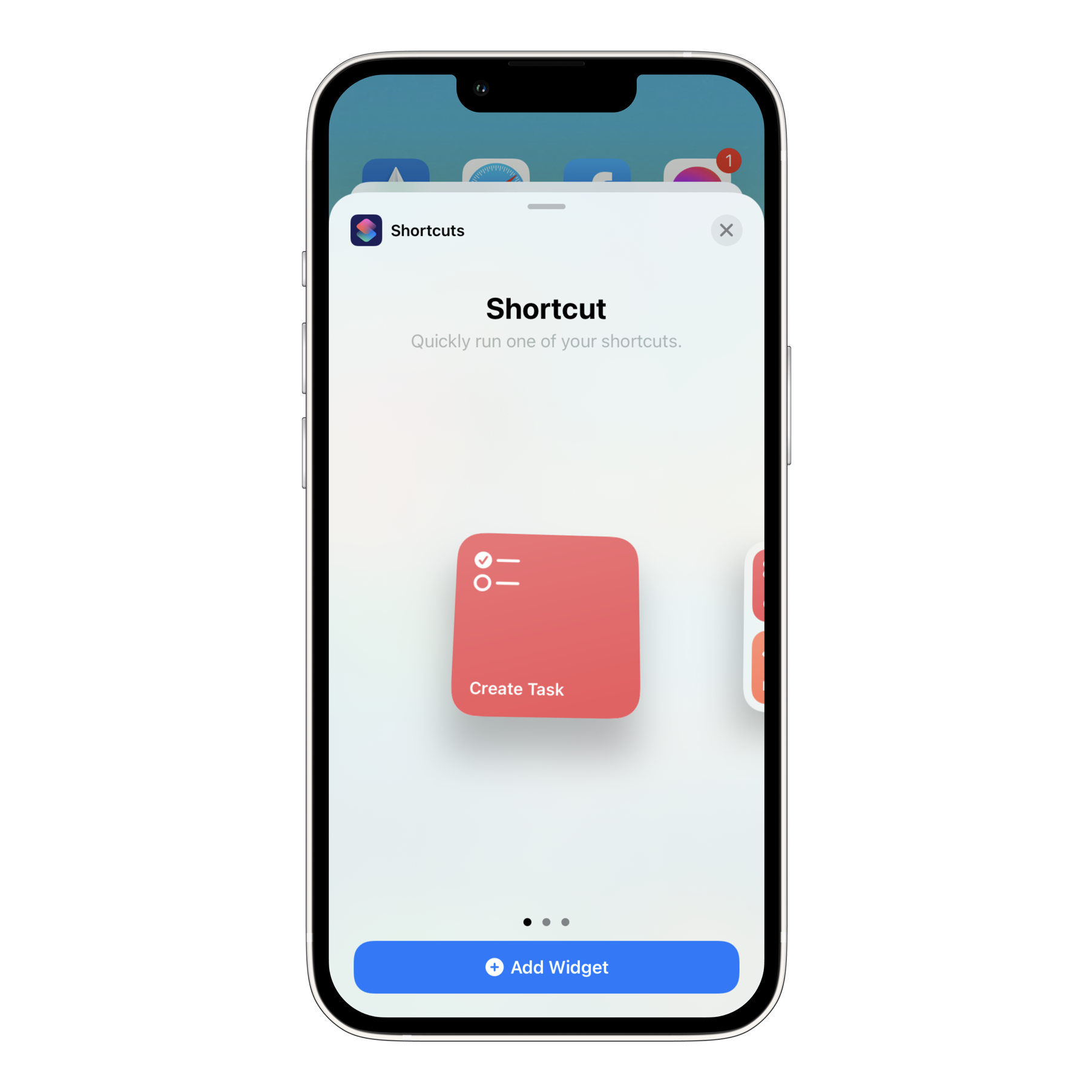
Press the “+” button in the top left corner of the screen to add a new widget, scroll down and in the list of apps, select “Shortcuts”. Find the shortcut you just created and press “Add Widget”.