Browser extensions
Easily build reading lists and save web pages, articles, or anything else from the web to Lunatask – right from your browser.
The following guide walks you through setting up our browser bookmarklet. While we don’t yet offer an official browser extension, our community has already built several browser extensions – take a look whether you prefer using one of those instead 👈
Browser bookmarklet
A browser bookmarklet is a special kind of bookmark sitting in your browser’s bookmarks/favorites bar, but instead of opening a website, it can do something else useful for you – like saving the page you’re viewing into Lunatask.
With link extraction, they make a powerful combo for building reading, watch later, and similar lists.
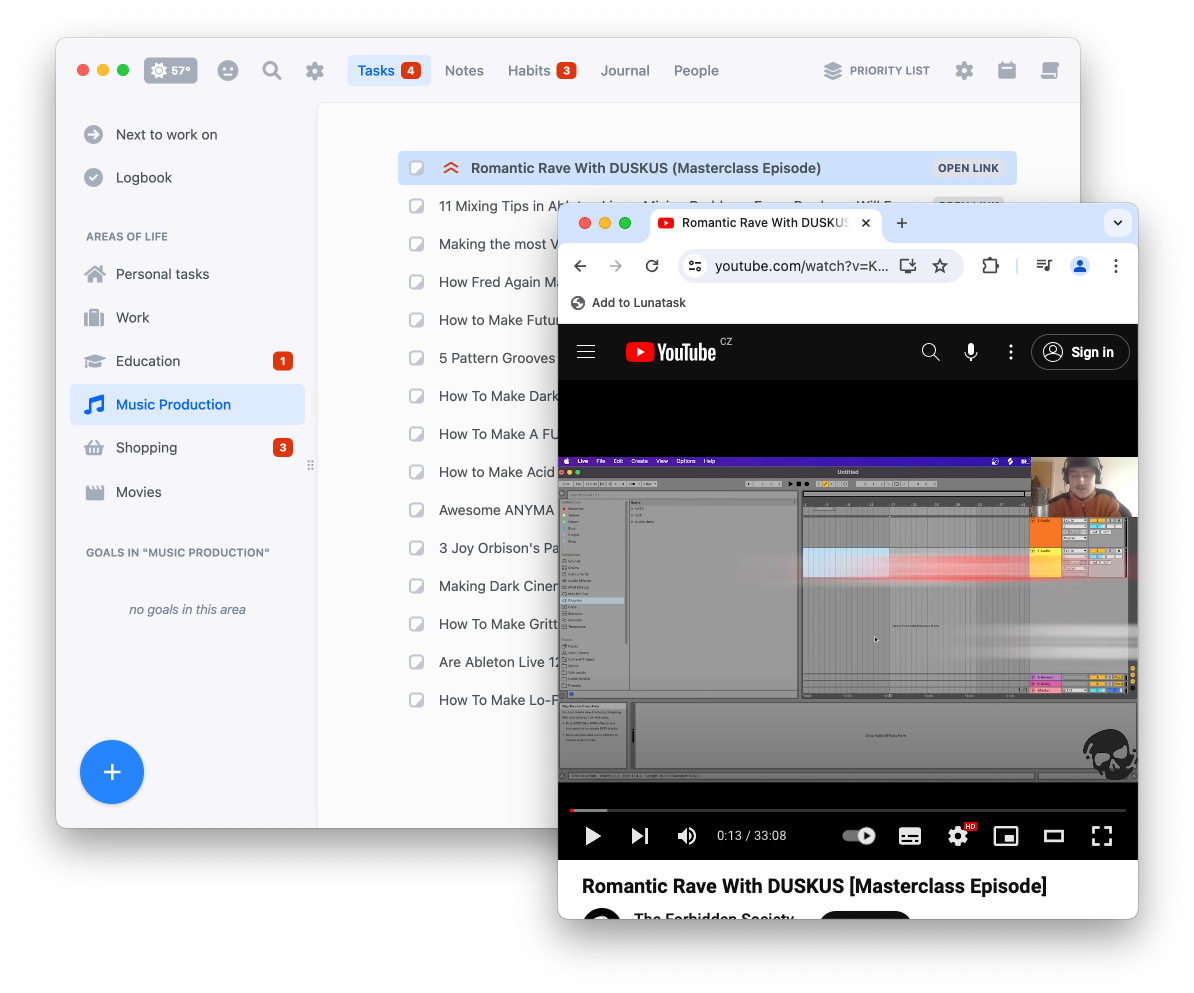
In area settings, you can choose to exclude an area – such as your reading list – from your “Next to work on” overview, which can be helpful for keeping things focused and reducing clutter.
Generate bookmarklet
Generate your browser bookmarklet using the form below and drag the bookmarklet onto your browser's bookmarks bar. Then, on any web page, simply click the bookmarklet to save the link as a task in your chosen area.
Where can I find Area ID?
The Area ID identifies the task list where the task will be created. Choose an existing area in your account or create a new one (for example, “Reading List”), then open its settings, click “Copy Area ID,” and paste it above.
Where can I find the access token?
First, create an access token to use with our API. In the desktop app, open Settings, go to the “Access Tokens” section, create a new token, then click “Copy to clipboard” and paste it above.
Browser bookmarklets are a bit of an old-school web technology. Instead of containing a link to a webpage, a bookmark stores a small snippet of JavaScript code.
When you click the bookmark, that tiny script grabs the title and URL of the page you’re currently viewing and sends them to our Create Task API – that’s literally all it does.
But bookmarklets date back decades, and the web has evolved a lot since then – especially around security. Some sites now use a new standard called Content Security Policy (CSP), which lets developers strictly control which external servers a page is allowed to talk to, based on a pre-approved whitelist.
Since bookmarklets are not a sophisticated technology like browser extensions and run directly in the context of the page you’re on, CSP can interfere and block its requests.
If you’re seeing errors like “Failed to load” or “Failed to fetch” when saving a webpage or article to Lunatask on some sites but not others, it’s likely these two technologies clashing – GitHub is a good example of a site that uses CSP, blocking any in-page code from communicating with external services (such as Lunatask API).
Extensions typically avoid this conflict – they run in their own context and are built to work with CSP. If this becomes an issue, you can switch to one of the community-built browser extensions.